

- Who it's for
- Dealers with a Dealer workspace, verified or still in preparation.
- What you need ready
- A Dealer workspace — see business verification.
- How long it takes
- Ten minutes to look around.
- What it costs
- The dealer plan is free while we launch. Selling a stone under $10,000: no commission while we launch; from $10,000: 5%, only when it sells.
The menu
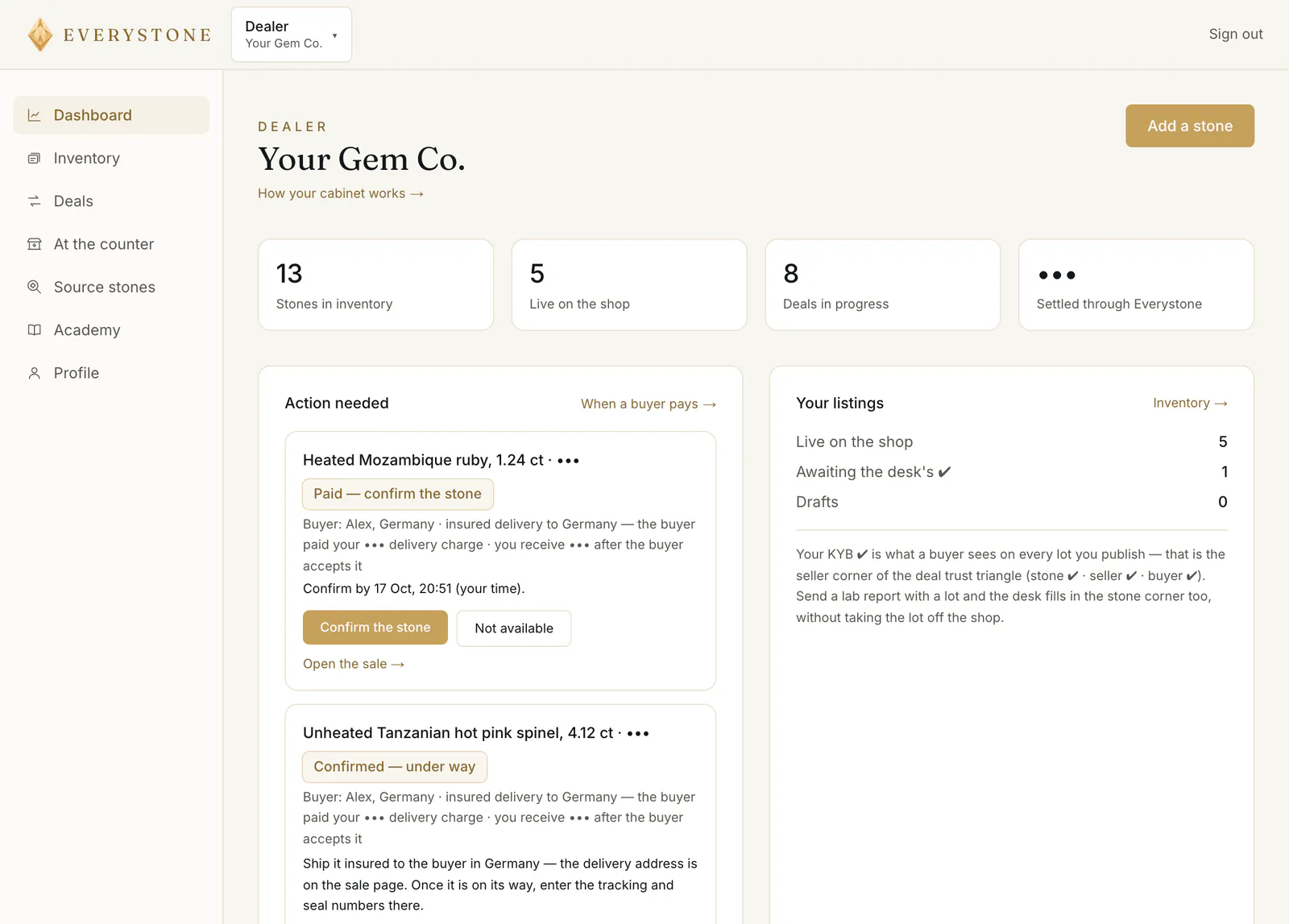
On a computer the menu runs down the left ①: Dashboard, Inventory, Deals, At the counter, Source stones and the rest. On a phone the first three sit in the bar at the bottom and the others are under More — see the phone picture below.
The workspace switcher at the top left ② shows your business name. Use it to switch to another workspace on your account, or + Add a role.
1. Dashboard
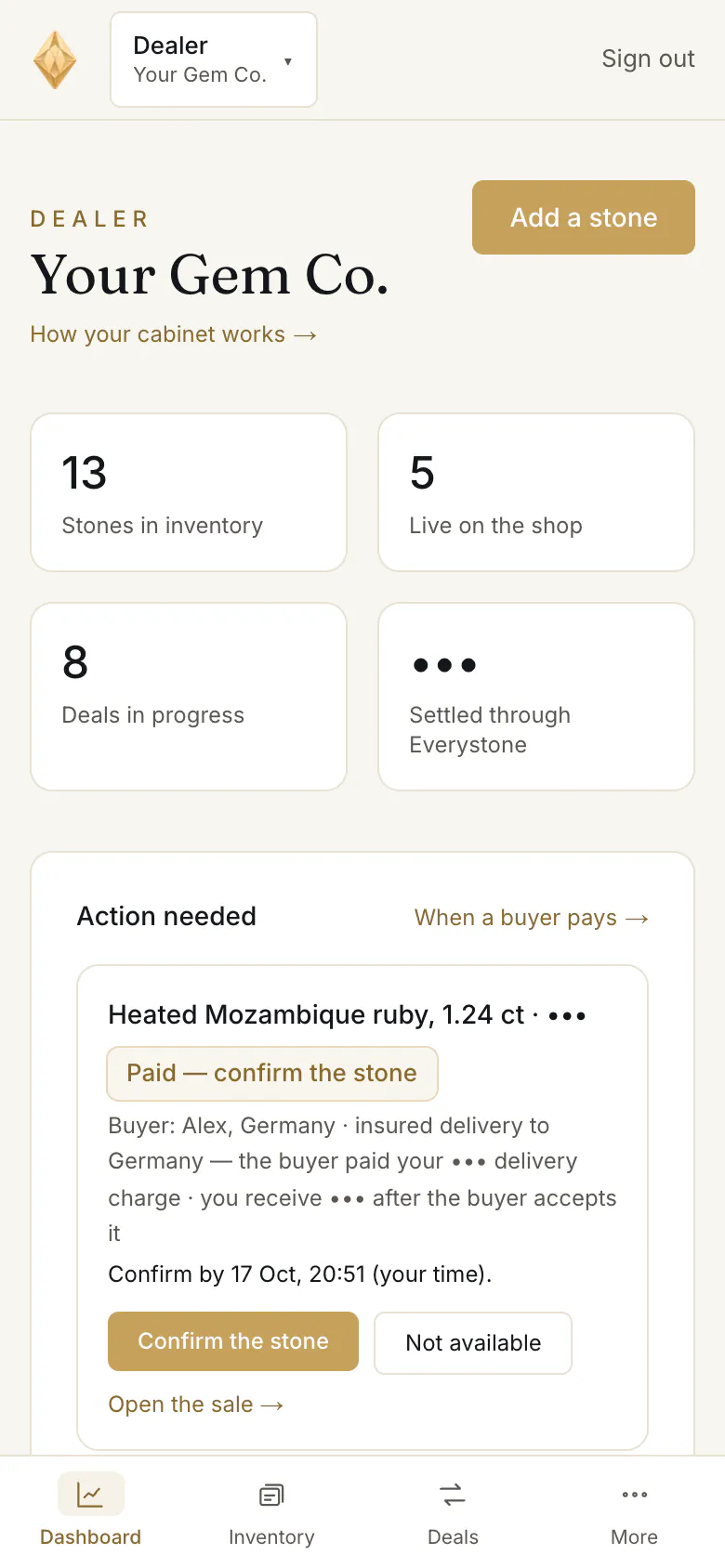
At the top right, Add a stone ③. Under your name, one card with your next step, depending on where your verification stands:
- “Verification — one step left” → Continue verification;
- “KYB in review — prepare while you wait”;
- “Verification returned” → Review and resubmit;
- “You're verified — the shop is waiting” → Add your first stone.
Business verification, step by step
Your company
Business name, registration number, director, country — then Continue to documents. Your workspace opens now.Two documents
The company registration and the director's ID, a photo or scan each — then Submit for review.“KYB in review — prepare while you wait”
Add stones — they are saved as drafts. You can buy from the shop meanwhile, checked as a person.The decision, by letter
- VerifiedYour drafts get Publish; every lot carries “Seller verified”.
- ReturnedReview and resubmit: fix what the reason names. Your details are kept — back to step 1.
Four numbers follow ④: “Stones in inventory”, “Live on the shop”, “Deals in progress” and “Settled through Everystone”.
“Action needed” ⑤ lists what is yours to do now: a buyer's paid order to confirm, a stone to ship or hand over, drafts to Publish. “Your listings” ⑥ counts what is live, “Awaiting the desk's ✔” and drafts.
2. Inventory
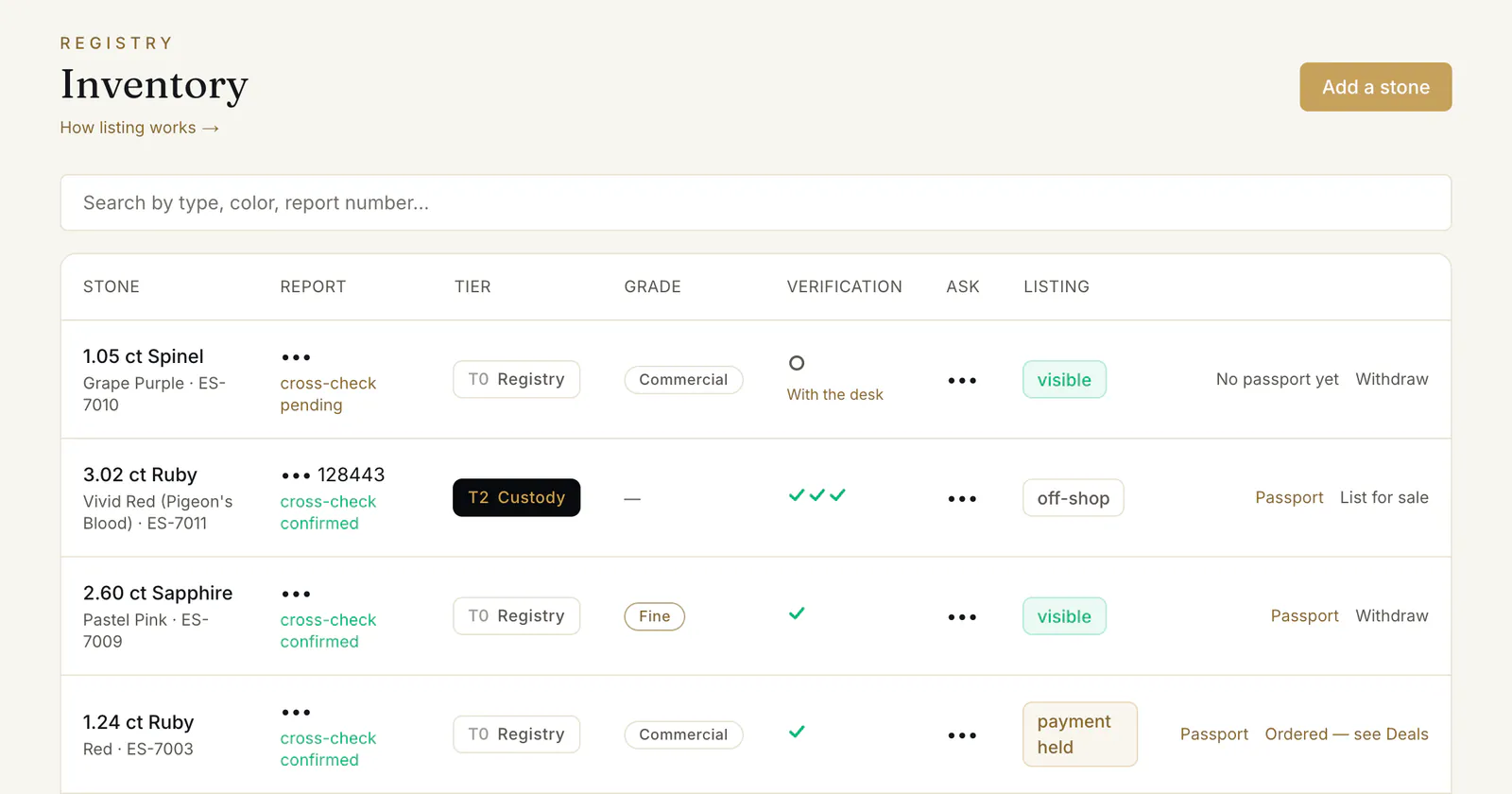
A search box ① — by type, colour or report number — and a table of your stones: the stone, its report, tier, grade, verification, asking price and listing state.
- Report ② says “cross-check confirmed”, “cross-check pending” or “not cross-checked”.
- Verification ③ shows the stamp, and what the desk is doing: “With the desk”, a question — “The desk asks:” (reply to its letter) — or “Not confirmed:” with the reason.
- Actions ④: Passport opens the stone's public page (from one tick ✔; otherwise “No passport yet”), Withdraw takes a lot off the shop, Publish puts a draft on it, List for sale lists a stone that is off the shop, and Ordered — see Deals marks a stone a buyer has ordered.
“Batch CSV upload stays white-glove during the pilot: send us your stock file and we load it together.”
3. Deals: Selling and Buying
Two tabs, Selling and Buying.
- Selling lists the sales of your lots. Where the next step is yours, its buttons are right in the list — Confirm the stone, Not available, Shipped, Handed over to the buyer — and Open the sale → opens the full page with the buyer, the payout and the stone. See When a buyer pays.
- Buying lists your own purchases. See How to buy a stone.
4. At the counter
For a stone you are selling face to face: book its verification and Passport through the desk. See At the counter.
5. Source stones
Opens the shop. You buy like anyone else, with the same protected payment. Once your business is verified, you need no personal identity check to buy.
Common problems
My new stone did not go on the shop
While your business verification is in review, a new stone is saved as a draft. It shows “Awaiting KYB” and goes live with one click on Publish once you are verified.
I can't withdraw a lot
“A buyer has ordered this stone — the lot stays until their order ends.” If you no longer have it, answer the order with Not available once it is paid.
Read next
- Next in DealersListing a stone: the form, the checks, and going liveHow to add a stone and put it on the shop — identity, lab report, origin and treatment, price band, delivery terms and documents — and what the buyer then sees.
- RelatedWhen a buyer pays: confirm the stone, send it, get paidWhat to do when a buyer pays for your stone: confirm it within 48 hours, ship it insured with tracking and seal numbers or hand it over, and when you are paid.
- RelatedAt the counter: book a Passport for a stone you sell in personWhen a customer is buying across your counter, book the stone's verification and Passport through the desk — who pays, how soon, and what happens next.
Something here doesn't match what you see? Tell us — write to the desk.