

Verify your business: the two-step KYB wizard
Company details, then two documents. What you can do while the desk reviews them, how the decision reaches you, and how to resubmit after a return.
Updated · 3 min read
 Illustration
- Who it's for
- Dealers and jewelry stores who want to sell on Everystone.
- What you need ready
- Your business name, company registration number and country.
- The director's full name.
- A photo or scan of the company registration document, and one of the director's ID.
- How long it takes
- A few minutes to fill in. The desk's review typically takes one business day.
- What it costs
- Verification is free. The plan for dealers and jewelry stores is free while we launch.
Before you start
Business verification — KYB, "know your business" — is how a buyer knows who sells to them: every lot you publish carries “Seller verified”. It is two short steps. You can stop after the first and come back.
Business verification, step by step
Your company
Business name, registration number, director, country — then Continue to documents. Your workspace opens now.Two documents
The company registration and the director's ID, a photo or scan each — then Submit for review.“KYB in review — prepare while you wait”
Add stones — they are saved as drafts. You can buy from the shop meanwhile, checked as a person.The decision, by letter
- VerifiedYour drafts get Publish; every lot carries “Seller verified”.
- ReturnedReview and resubmit: fix what the reason names. Your details are kept — back to step 1.
Step 1: your company
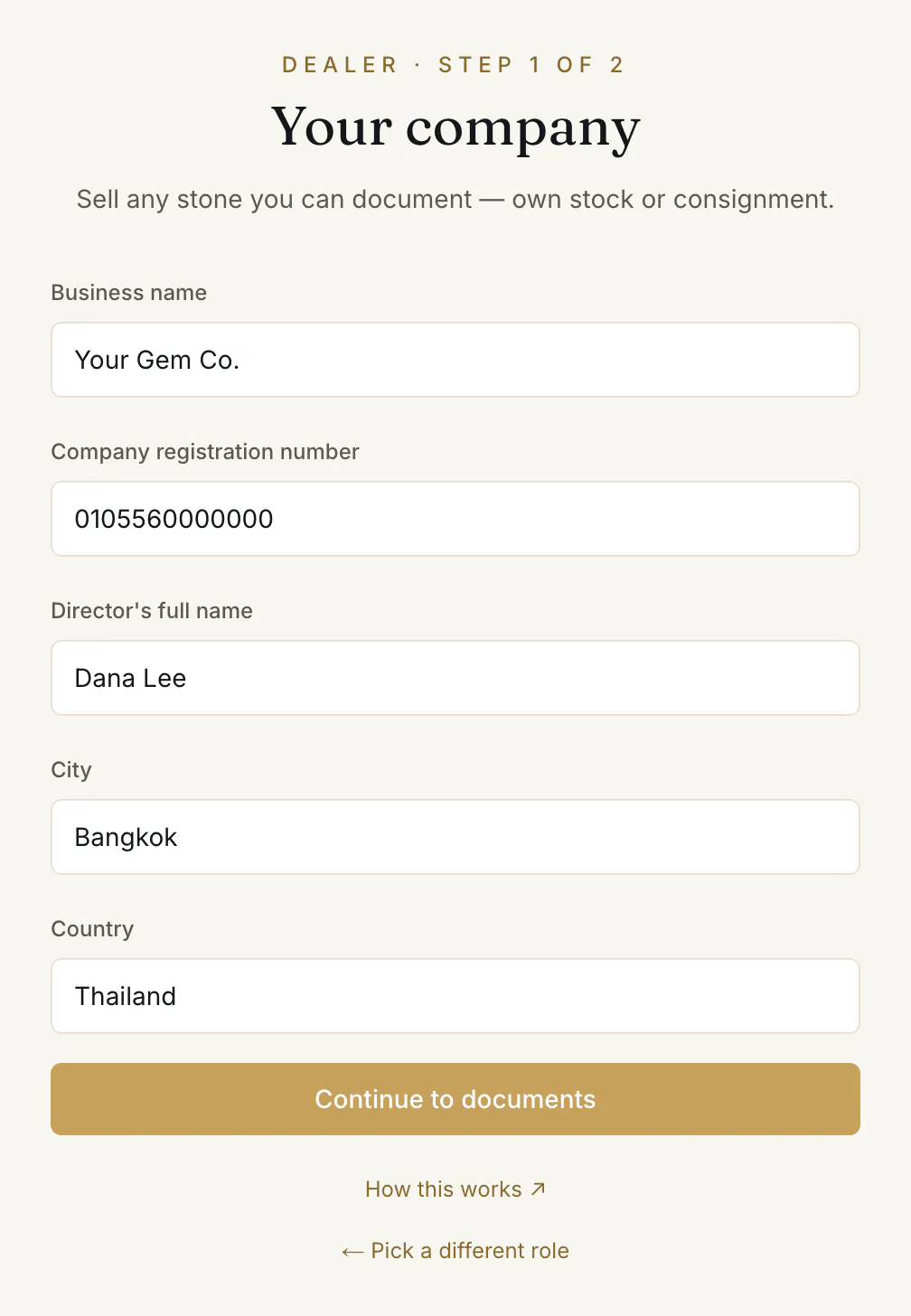
- 1.On your dashboard card press Become a dealer or Become a jewelry store. With an account that already has other workspaces: the switcher at the top left, then + Add a role.
- 2.Fill in Business name ①, Company registration number, Director's full name, City (optional) and Country.
- 3.Press Continue to documents ②.
Your Dealer or Jewelry store workspace now exists. Until the desk's decision it runs in preparation mode — see below.
Step 2: two documents
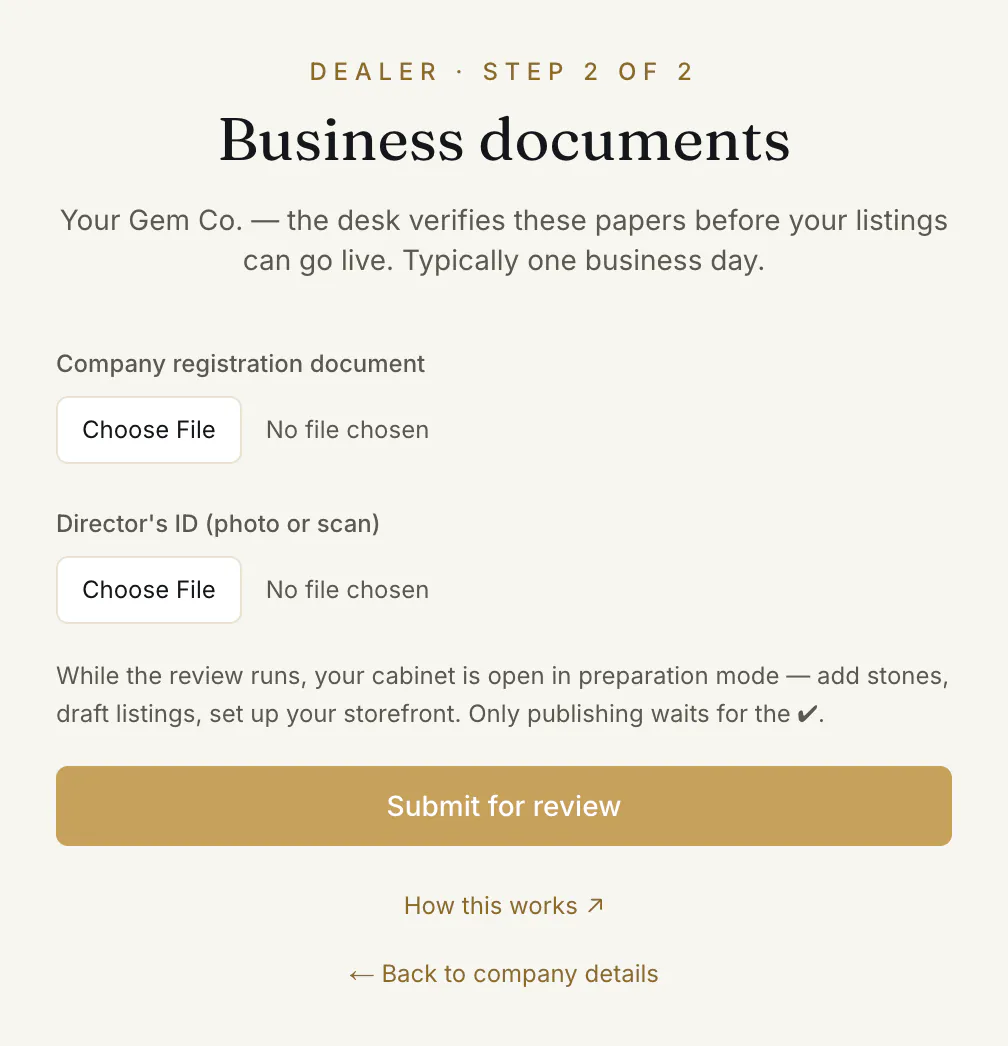
- 1.Company registration document ① — a photo or scan.
- 2.Director's ID (photo or scan) ②.
- 3.Press Submit for review ③.
Each file can be JPG, PNG, HEIC or PDF, up to 8 MB. Both are needed: “Both documents are required — company registration and the director's ID.”
You land on your dashboard with “Your business documents are with the desk — typically one business day.” A letter confirms that the application is with the desk.
While the desk reviews: preparation mode
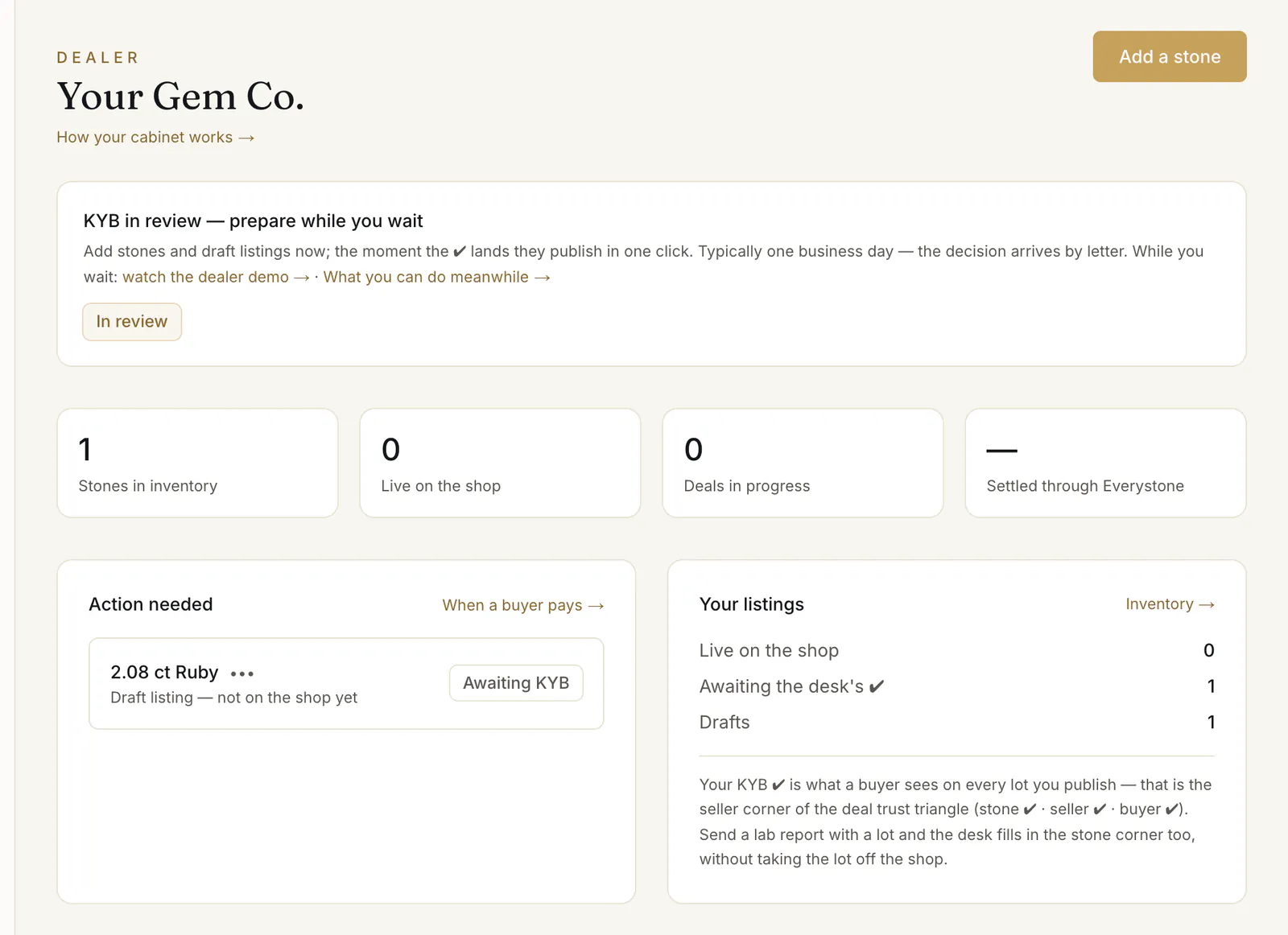
Your dashboard shows “KYB in review — prepare while you wait” ①. Everything is open except publishing:
- Add stones with Add a stone ③; the form's button reads Save as a draft. Each one is saved as a draft: “Saved as a draft — it goes on the shop in one click the moment your business verification (KYB) is approved.”
- A draft shows “Awaiting KYB” ② in your inventory and under “Action needed”.
- You can buy from the shop meanwhile. Until your business is verified, you buy as a person, so the identity check applies to you — see The identity check.
The decision
It comes by letter.
- Verified. Your drafts get a Publish button — on the dashboard under “Action needed”, and in your inventory. From now on a stone you add goes on the shop as you save it. See List a stone for sale.
- Returned. The letter names the reason. Your dashboard shows “Verification returned” with Review and resubmit. The first step opens again with “The desk returned your application:” and the reason above your details, which are all kept. Fix what the reason names and press Continue to documents. A document already on file is marked “on file, replace only if needed” — upload only what the reason asks for, then Submit for review.
Common problems
I left after the first step
Your dashboard shows “Verification — one step left”. Press Continue verification to reach the documents.
“That file didn't go through”
“That file didn't go through” — it takes JPG, PNG, HEIC or PDF, up to 8 MB. Take a new photo or save the scan as a PDF, and try again.
Do I also need the personal identity check?
Not for buying once your business is verified: a purchase made from a verified Dealer or Jewelry store workspace rests on the business check. Before that, you are checked as a person.
Read next
- Next in Getting startedReading a lot: the check marks, the verification levels and the passportWhat ✓ and ○ mean on a card, what the four verification levels say, when a stone has a public passport, and how to filter the shop by what is checked.
- RelatedYour dealer cabinet: dashboard, inventory, deals and the counterWhat each part of the dealer cabinet is for — the dashboard's next step, the inventory table, the Selling and Buying tabs, At the counter and Source stones.
- RelatedListing a stone: the form, the checks, and going liveHow to add a stone and put it on the shop — identity, lab report, origin and treatment, price band, delivery terms and documents — and what the buyer then sees.
- RelatedJewelry stores: selling your own inventory, buying from dealersWhat differs for a jewelry store — the same business verification, your own stock only, an origin declaration instead of consignment papers, free buying.
Something here doesn't match what you see? Tell us — write to the desk.