

Choose how you use Everystone
Every account opens as a buyer. How to add a dealer, jewelry store or owner workspace — or watch a demo first — and how to switch between them.
Updated · 2 min read
 Illustration
- Who it's for
- New account holders deciding what to do here, and anyone adding a second role to their account.
- What you need ready
- An Everystone account.
- How long it takes
- A minute to choose. Business verification and bringing in a stone have guides of their own.
- What it costs
- Choosing a role is free. The plan for dealers and jewelry stores is free while we launch.
The card on your dashboard
A new account opens on the buyer dashboard. Near the top is a card that asks “How will you use Everystone?” It has four choices, each with a button and a demo next to it:
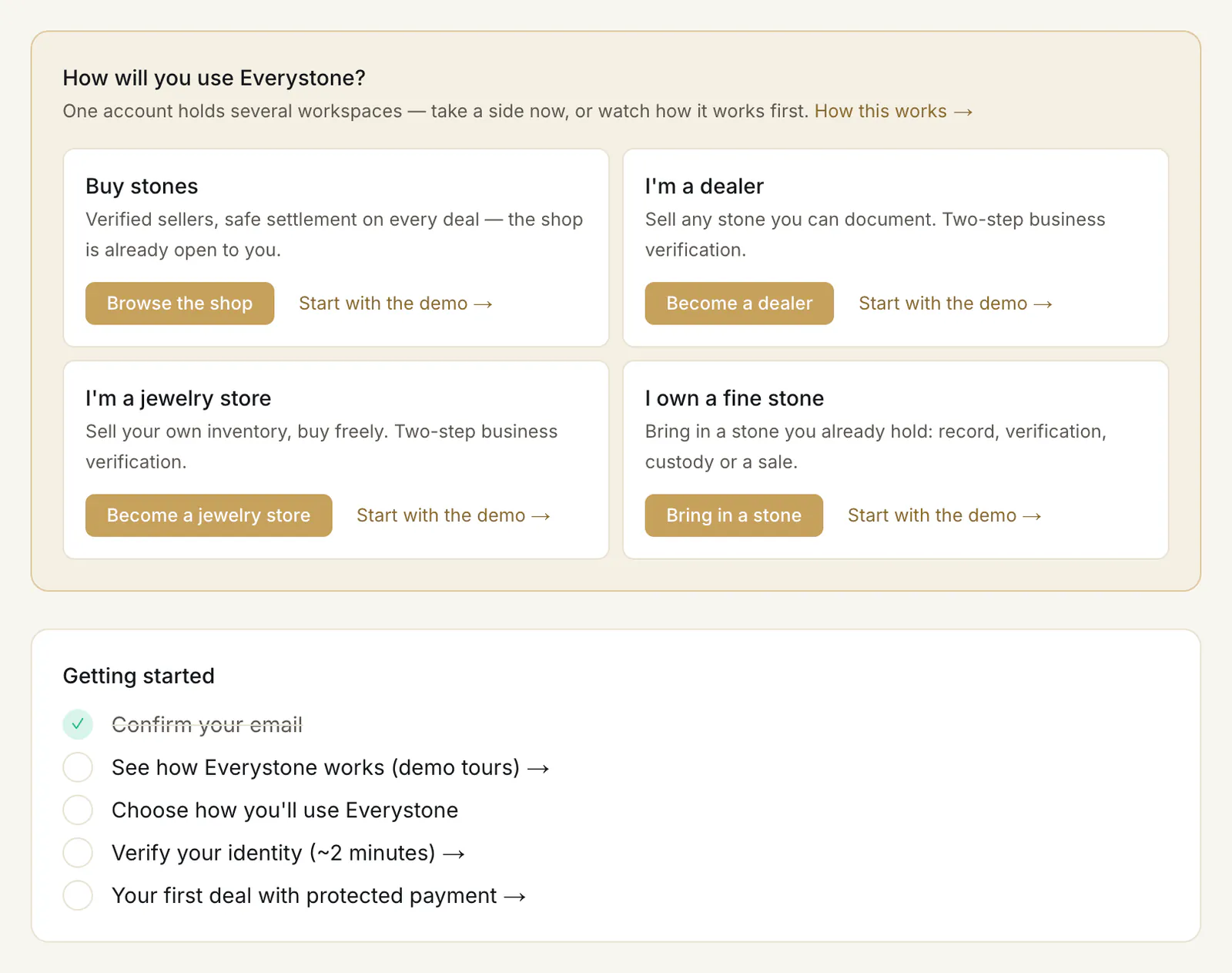
- Buy stones — Browse the shop ① takes you to the shop. There is nothing else to set up.
- I'm a dealer — Become a dealer ② opens business verification. See Verify your business.
- I'm a jewelry store — Become a jewelry store ③ opens the same verification.
- I own a fine stone — Bring in a stone ④ opens a short form about the stone. See Bring in a stone you own.
Not sure yet? Every choice has Start with the demo → ⑤ beside it.
The card stays on your dashboard until your account has a second workspace.
Where to start
Buy stones
I'm a dealer
I'm a jewelry store
I own a fine stone
The “Getting started” list
Under the card, “Getting started” ⑥ lists the first steps and ticks each one off as you do it: “Confirm your email”, “See how Everystone works (demo tours)”, “Choose how you'll use Everystone”, “Verify your identity (~2 minutes)” and “Your first deal with protected payment”. The list disappears once everything on it is done.
Add a role later
One account can hold several workspaces — a buyer who later sells as a dealer keeps the same sign-in.
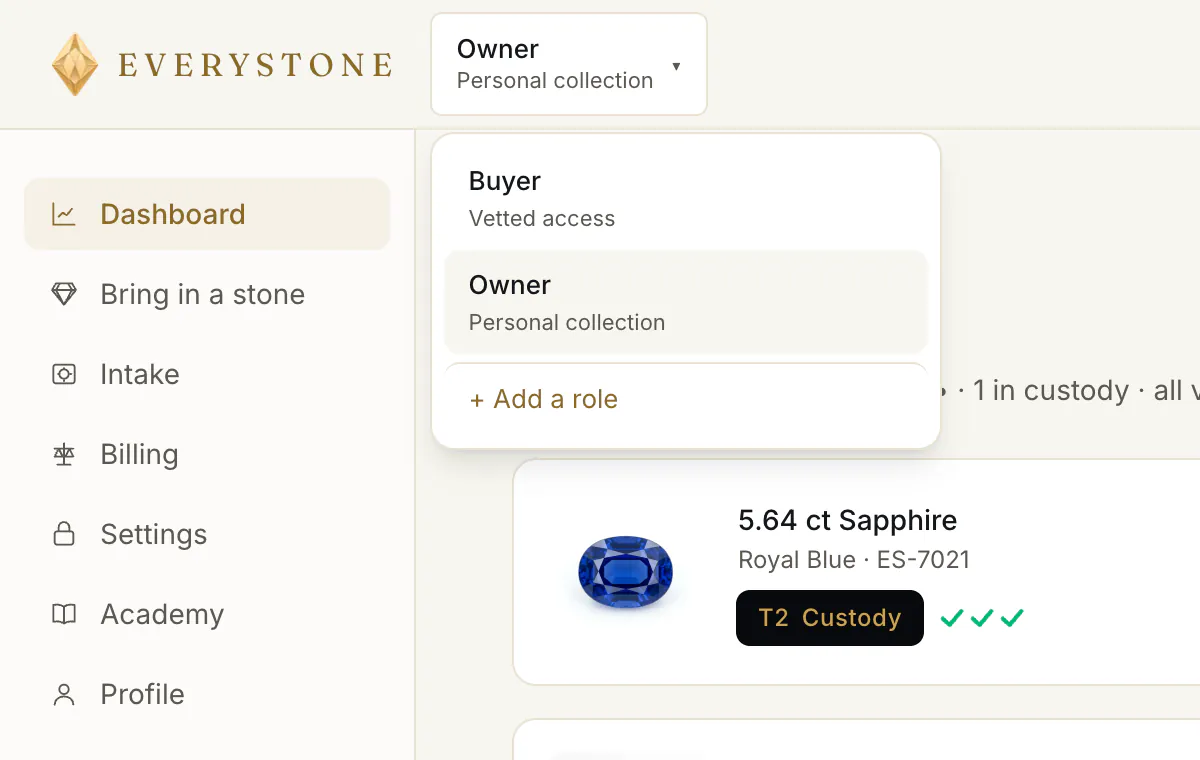
- 1.In the cabinet, open the workspace switcher at the top left ①. It shows the workspace you are in, such as Buyer.
- 2.Press + Add a role ②.
- 3.On “Add a role”, pick what you need: Buyer access, I own a fine stone, Dealer workspace or Jewelry store workspace. A role you already have is greyed out and marked “already on this account”.
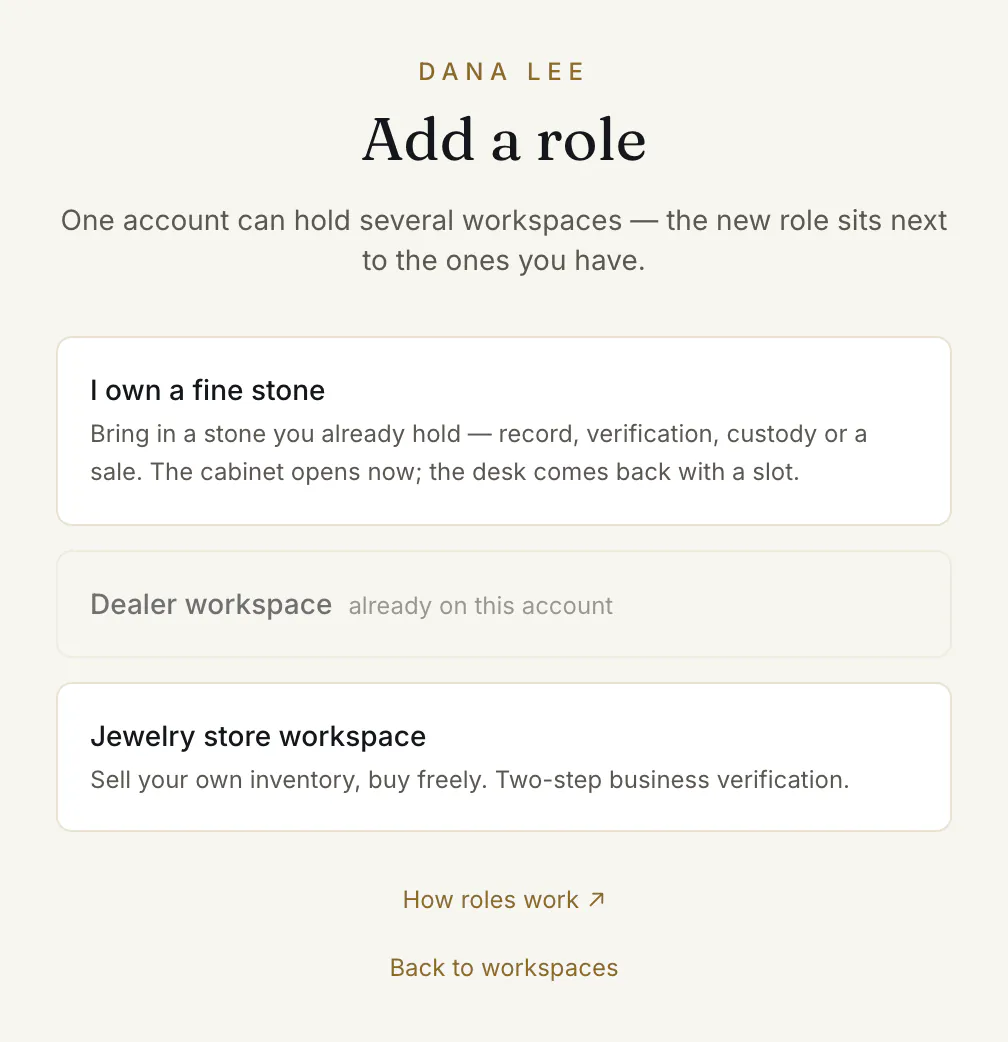
Buyer access opens at once. A dealer or jewelry store workspace opens as soon as you save the first step of the business form, in preparation mode. An owner workspace opens when you send the stone form.
Switch between workspaces
Open the switcher and pick another workspace. A business workspace that is not verified yet shows its status there, for example KYB in review. When you sign in to an account with several workspaces, you choose one on “Choose a workspace”.
Watch a demo first
The buyer menu has Demos; anyone signed in can also open the demo tours. There are four — Buyer, Dealer, Jewelry store and Owner — each a few steps over the demo cabinet's sample stones. “Read-only: nothing you do here changes anything.”
Common problems
I don't see the card any more
It shows only while your account has nothing but the buyer workspace. Use + Add a role in the switcher instead.
I started the wrong business form
Pressing Become a dealer only takes you to the form; nothing is created until you press Continue to documents. If you have already saved the first step, the workspace exists in preparation mode and there is no button to remove it — write to the desk through the contact page.
Read next
- Next in Getting startedVerify your business: the two-step KYB wizardCompany details, then two documents. What you can do while the desk reviews them, how the decision reaches you, and how to resubmit after a return.
- RelatedBring in a stone you already ownHow to tell the desk about a stone you own — to record it, verify it, vault it or sell it — and how to follow the request until it joins your collection.
- RelatedHow to buy a stone: from the lot page to your orderOpen a lot, press Buy with protected payment, choose what to add and how the stone reaches you, then confirm. What each choice means and what happens next.
Something here doesn't match what you see? Tell us — write to the desk.