

Create an account and confirm your email
Three fields and a confirmation link: how to register, confirm your address and sign in — and what to do if the link has expired or you forgot your password.
Updated · 3 min read
 Illustration
- Who it's for
- Everyone. Buyers, sellers, dealers, jewelry stores and owners all start with the same account.
- What you need ready
- An email address you can open now.
- A password of at least eight characters.
- How long it takes
- About two minutes, plus however long the letter takes to arrive.
- What it costs
- Free.
Create your account
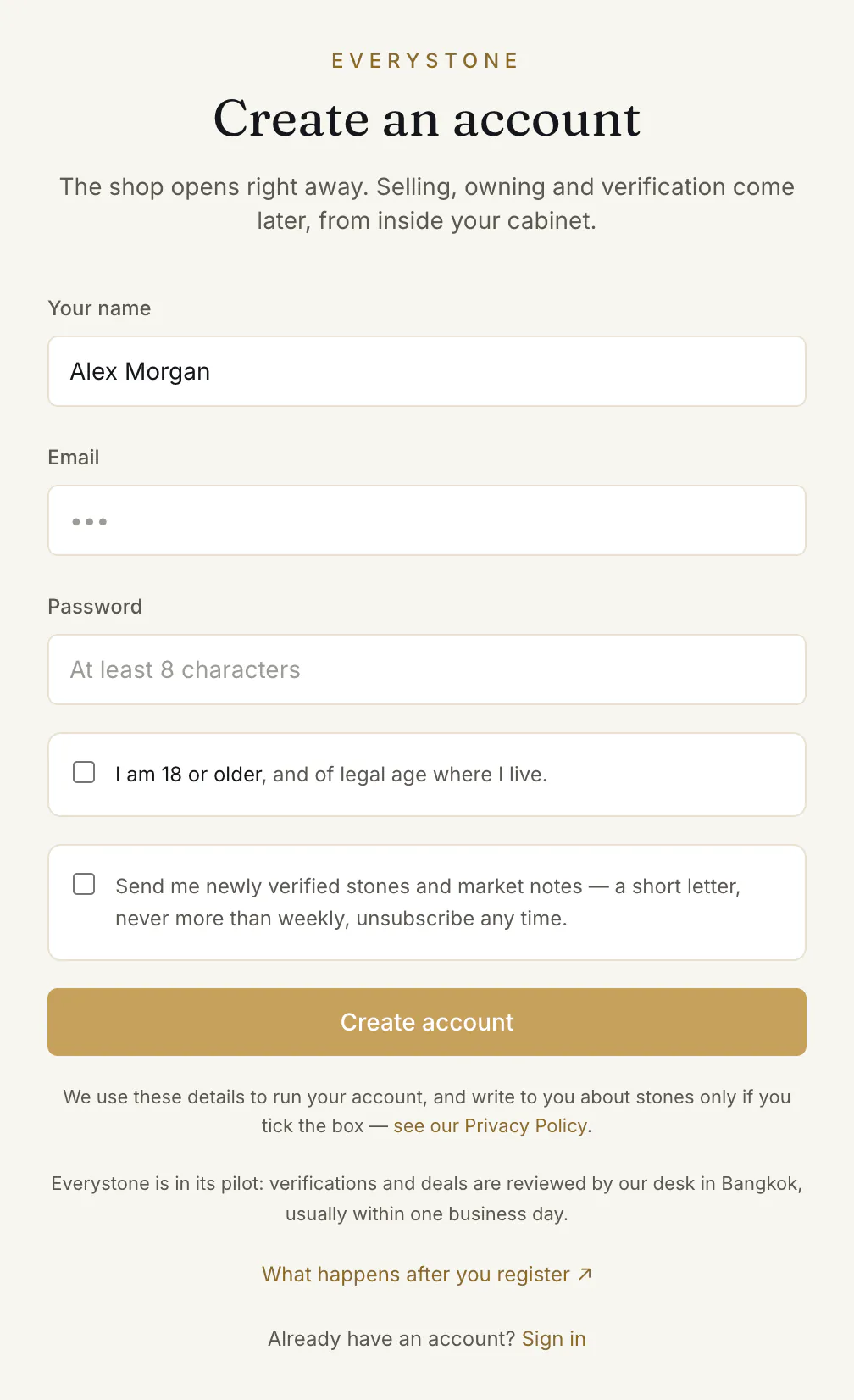
- 1.Press Create account at the top of any page, or open the registration page.
- 2.Fill in Your name ①, Email and Password. The password needs “At least 8 characters”.
- 3.Tick I am 18 or older ③ — the form is not sent without it. The box under it ② asks whether you want our letter of newly verified stones and market notes. It stays empty unless you tick it.
- 4.Press Create account ④.
You are signed in at once and land in your cabinet as a buyer. The shop is open to you straight away. Selling, owning a stone and business verification are added later, from inside the cabinet — see Choose how you use Everystone.
Where to start
Buy stones
I'm a dealer
I'm a jewelry store
I own a fine stone
If you pressed Buy on a lot before you had an account, registering brings you back to the same checkout.
Confirm your email
We send the letter “Confirm your Everystone account” to the address you gave.
- 1.Open it and press Confirm my email.
- 2.A page opens that says “Your address is confirmed”. Press Open your cabinet — or Sign in, if you opened the link on another device.
“Confirmation links last 48 hours and can be used once.” Asking for a new link makes the old one stop working.
Until you confirm, a strip at the top of your cabinet says “Your email address isn't confirmed yet — the link is in your inbox.” Its Send it again button sends a fresh link.
Sign in
- 1.Press Sign in at the top of the site.
- 2.Enter your Email and Password and press Sign in.
- 3.If your account has more than one workspace — a buyer and a dealer, say — you pick one on the page “Choose a workspace”. Otherwise you land straight in your cabinet.
To leave, press Sign out at the top right of the cabinet.
Your profile
Profile, the last item in your cabinet's menu, opens “Your profile”: a display name, a photo, your country and city, a few words about you — all optional except the name. It is “What the other side of a purchase sees of you.” A seller you buy from sees your first name, country and photo; nothing from your profile appears on the shop. Press Save profile when you are done.
Common problems
The page says “This link no longer works”
The link has expired or has already been used. Press Send a new link on that page — if you are signed out, it asks for your address first. Only the newest link works.
Sign-in asks me to confirm my email first
You see “Please confirm your email first — the link is in your inbox.” Under it, “Didn't get the confirmation email? We'll send a new link.” Enter your address and press Send it again.
No letter arrived
Look in the spam folder first. Then use Send it again. Two presses in quick succession send one letter, not two — give the first a minute to arrive.
“Tick the box to confirm you are 18 or older”
“Everystone is for adults: tick the box to confirm you are 18 or older.” Tick I am 18 or older and press Create account again.
“An account with this email already exists”
“An account with this email already exists — sign in instead.” Use Sign in with that address.
I forgot my password
“Forgot your password? During the pilot, the desk resets it — use the contact page.” Write to us through the contact page. When the desk has set a new password you get the letter “Your Everystone password was changed”, and every device that was signed in with the old one is signed out.
Read next
- Next in Getting startedChoose how you use EverystoneEvery account opens as a buyer. How to add a dealer, jewelry store or owner workspace — or watch a demo first — and how to switch between them.
- RelatedHow to buy a stone: from the lot page to your orderOpen a lot, press Buy with protected payment, choose what to add and how the stone reaches you, then confirm. What each choice means and what happens next.
Something here doesn't match what you see? Tell us — write to the desk.